7 画面をスクロールして表示される「追加」をクリックします。
8 バックアップ元とバックアップ先を選択して、「OK」をクリックします。
バックアップ元:Amazon S3にアップロードするファイルを保存する共有フォルダーを指定します。
バックアップ先:上記「 Amazon S3連携タスクを作成する 」(P.156)で作成したAmazon S3連携フォルダーを指定します。
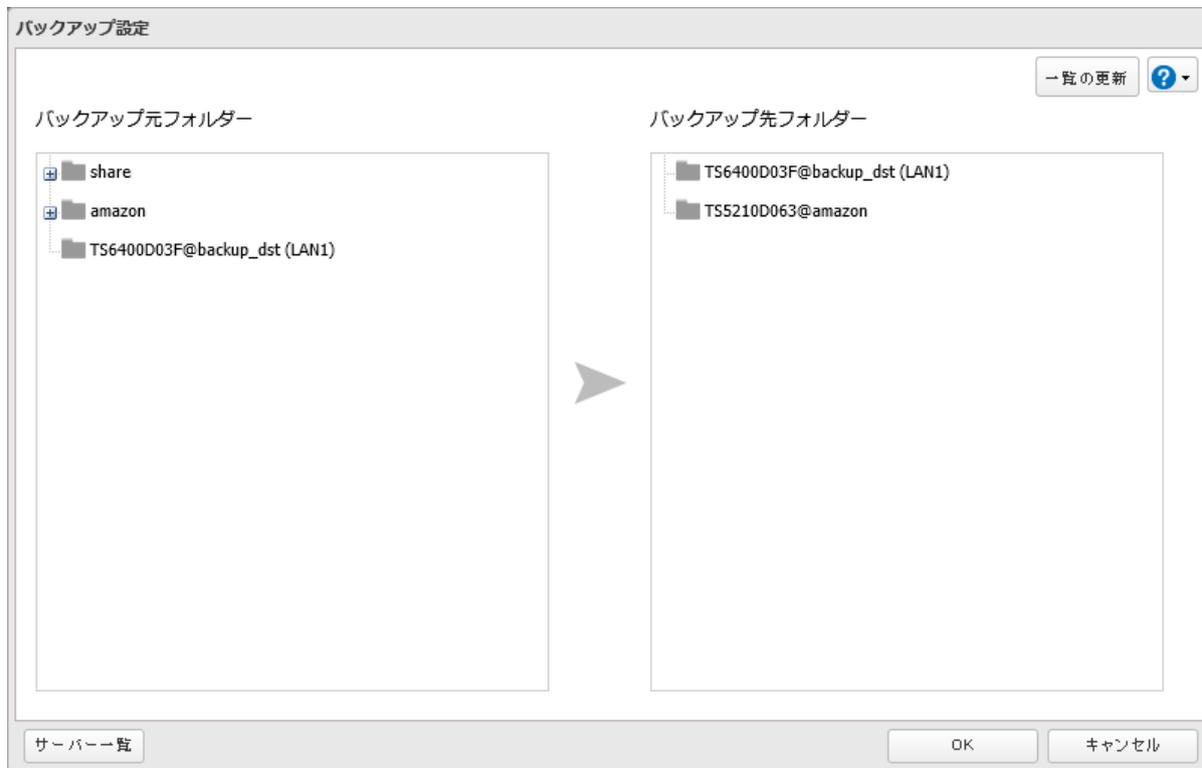
Screenshot of the 'Backup Settings' (バックアップ設定) dialog box. The window is titled 'バックアップ設定'. It contains two panes: 'Backup Source Folder' (バックアップ元フォルダー) on the left and 'Backup Destination Folder' (バックアップ先フォルダー) on the right. The left pane shows a tree view with 'share', 'amazon', and 'TS6400D03F@backup_dst (LAN1)'. The right pane shows 'TS6400D03F@backup_dst (LAN1)' and 'TS5210D063@amazon'. A large arrow points from the left pane to the right. At the top right are buttons for 'Refresh' (一覧の更新) and a help icon (?). At the bottom are buttons for 'Server List' (サーバー一覧), 'OK', and 'Cancel' (キャンセル).
9 「OK」をクリックします。
以上で、Amazon S3にファイルをアップロードする手順は完了です。
メモ:
- • ネットワークが一時的に切断された後に使用するときは、「再接続」をクリックしてください。
- • 本製品のAmazon S3連携フォルダー以外からバケット内にファイルを追加しても、連携フォルダーには反映されません。
- • 本機能を使用してアップロードできるファイル数の上限については、 https://86886.jp/s3_upload/ を参照してください。ただし、10万個以上のファイルを一度にバックアップ元の共有フォルダーへコピーしないでください。アップロードに失敗することがあります。
- • アップロードするファイルと同名のファイルが対象のバケットにすでに保存されている場合、アップロードするファイルが古いときでも上書きしてアップロードされますのでご注意ください。
-
• バックアップ元の共有フォルダーにファイルを追加すると、追加したファイルはAmazon S3連携フォルダーを経由してバックグラウンドで順次Amazon S3へアップロードされます。そのため、以下の場合にはファイルがアップロードされないことがあります。そのようなときはもう一度ファイルを共有フォルダーへコピーしてください。
- ○ ファイルをコピーしたあとに本製品をシャットダウン、または再起動したとき
- ○ 設定を変更したとき
- ○ LANケーブルを抜き挿したとき
- • ファイルがアップロードされていない場合は、「エラーログ詳細」をクリックしてください。エラーが発生している操作やファイル名がログに記載されます。