設定を保存、復元する
本製品の設定をUSBドライブに保存し、そのUSBドライブからほかのバッファローNASに設定を復元できます。設定のバックアップとしての用途や、新しく購入したバッファローNASに本製品の設定をコピーするときなどにもお使いいただけます。
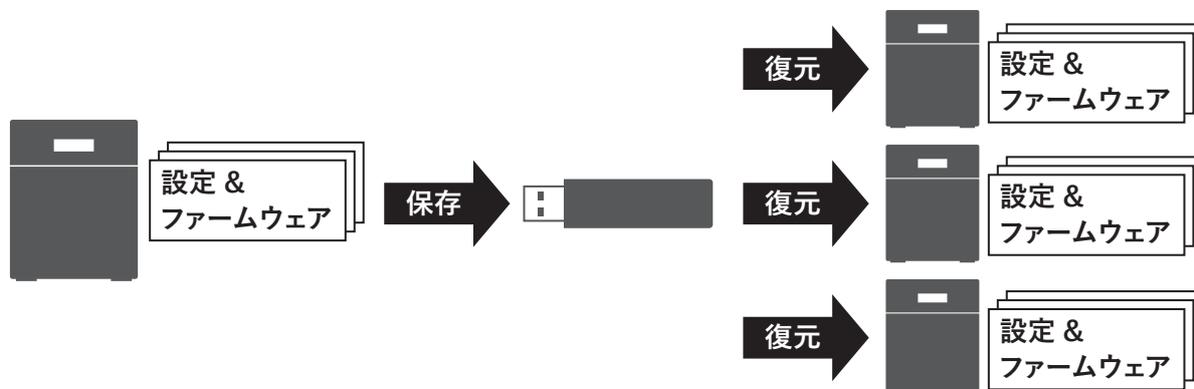
Diagram illustrating the process of saving and restoring settings. On the left, a NAS icon is shown next to a stack of papers labeled '設定 & ファームウェア' (Settings & Firmware). An arrow labeled '保存' (Save) points from this stack to a USB drive icon. From the USB drive, three arrows labeled '復元' (Restore) point to three separate NAS icons, each next to a stack of papers labeled '設定 & ファームウェア'.
メモ:
- • フェイルオーバーを構築しているときは、設定を保存できません。
- • 2 TB以上のUSBドライブは、設定の保存には使用できません。
- • 設定保存時のドライブの構成(ドライブの数、RAIDやLVMなど)をあらかじめメモしてください。設定を復元する際には、復元先のバッファローNASのドライブ構成を設定保存時と同じ状態にしてください。ドライブの構成が異なると正しく設定が復元できないことがあります。
- • 以下の設定項目は保存、復元できません。
| 設定画面のカテゴリー | 設定項目 |
|---|---|
| ファイル共有 | 共有フォルダー内のサブフォルダー/ファイルにエクスプローラーから設定したアクセス権限設定 |
| USBドライブの共有フォルダー情報 | |
| [ユーザー]をクリックした画面の2段階認証設定 | |
| ストレージ | [ドライブ]をクリックした画面のすべての項目 |
| [LVM]をクリックした画面のすべての項目 | |
| [iSCSI]をクリックした画面のすべての項目 | |
| USBドライブの情報 | |
| クラウドストレージ連携 | Dropbox連携機能のタスク設定 |
| Microsoft OneDrive連携機能のタスク設定 | |
| ネットワーク | [IPアドレス]をクリックした画面の「Wake on LAN」、「MTU」、「サービスを再起動する時間」、「FQDNマッピング」以外の項目 |
| [ポートトランキング]をクリックした画面のすべての項目 | |
| [サービスポート制限]をクリックした画面のすべての項目 | |
| バックアップ | [フェイルオーバー]をクリックした画面の「定期同期設定」タブ、「詳細設定」タブ以外の項目 |
| 管理 | [名称/時刻/言語]をクリックした画面の「名称」 |
|
[メール通知]をクリックした画面のOAuth 2.0認証設定
メモ: メール通知機能の設定を復元後にOAuth 2.0認証を行ってください。 |
|
| [電源管理]をクリックした画面のすべての項目 | |
| [SSL]をクリックした画面のすべての項目 | |
| 設定画面の表示言語 |